
Table of Contents
Some of the scariest "virus warnings" people see on their computers aren't viruses at all. They're something much simpler, and something most people accidentally allowed themselves.
Here's what happens. You're browsing the web: maybe reading a recipe, checking the weather, or looking something up... and a little box pops up asking if you want to allow the website to send you notifications.
“Allow notifications?”
It feels official. It looks like a system message. And you click "Allow" without thinking much about it, because the page seems to be waiting for you to answer before it lets you continue.
And just like that, you gave that website permission to send messages directly to your computer, even when you’re not on that site anymore.
What you just agreed to
Browser notifications are a legitimate technology. Used responsibly, they let a trusted news site ping you with a breaking story, or let an airline alert you about a gate change. That's the idea, anyway.
But in practice, the "Allow notifications" prompt has been weaponized. Thousands of sketchy websites (and even some that look perfectly normal) use it to flood your screen with fake alerts designed to look exactly like serious system warnings. Things like: "URGENT: Your computer is infected with 3 viruses. Click here immediately." Or: "Your Windows license has expired." Or: "Suspicious activity detected on your account."
These aren't viruses. They're not even really warnings. They're ads, junk notifications from a website you visited once and gave permission to reach you whenever it wanted. The goal is to scare you into clicking, which takes you somewhere that wants your credit card number, your passwords, or your trust.
I want to be clear: I have never received a "my computer is infected!" panic call that turned out to be an actual virus. Every single one, without exception, has traced back to one of these notification pop-ups. Once we figure that out together, the relief in the person's voice is immediate. And the fix takes about two minutes.
Why They Feel So Real
These notifications are designed to look urgent and official.
They may include:
- Fake virus warnings
- Messages pretending to be from Microsoft or Apple
- Alerts about “security breaches”
- Instructions to call a phone number immediately
Some even include logos, flashing colors, and alarming sounds. But here’s the key point:
These are not coming from your computer. They are not coming from Microsoft, Apple, or your antivirus software.
They are simply messages being pushed through your web browser because you unknowingly gave permission.
Why This Works So Well
This is one of the most effective tricks scammers use, because it combines two powerful ideas:
- Authority (it looks official)
- Urgency (it tells you to act immediately)
Sound familiar?
If you read my last column, we already know that’s because it’s the same pattern we see in many scams. But in this case, there’s an added twist: the message is coming from your own computer screen. That makes it feel even more real.
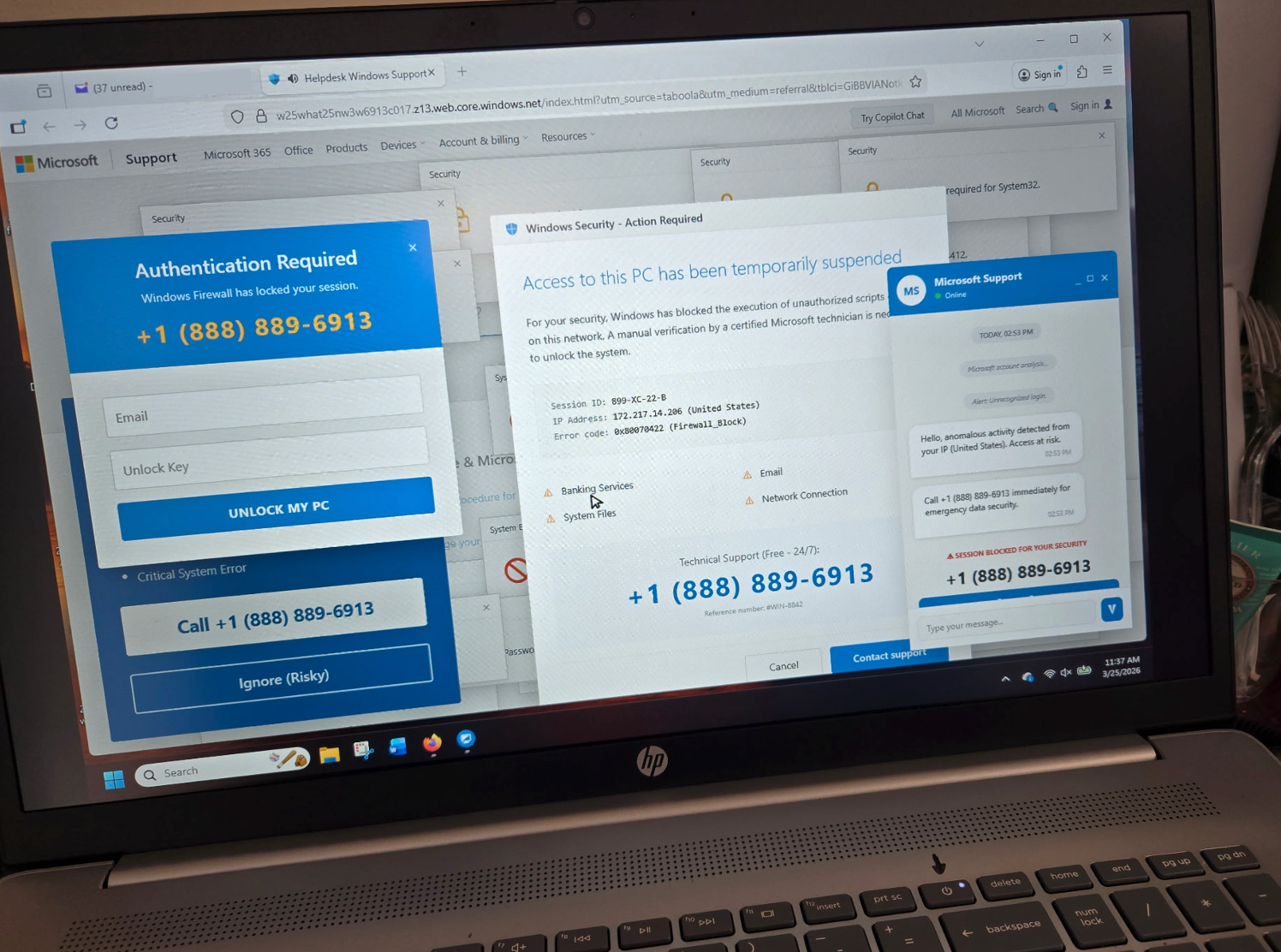
If you look at the image below, there are a few important things to notice (circled in red).
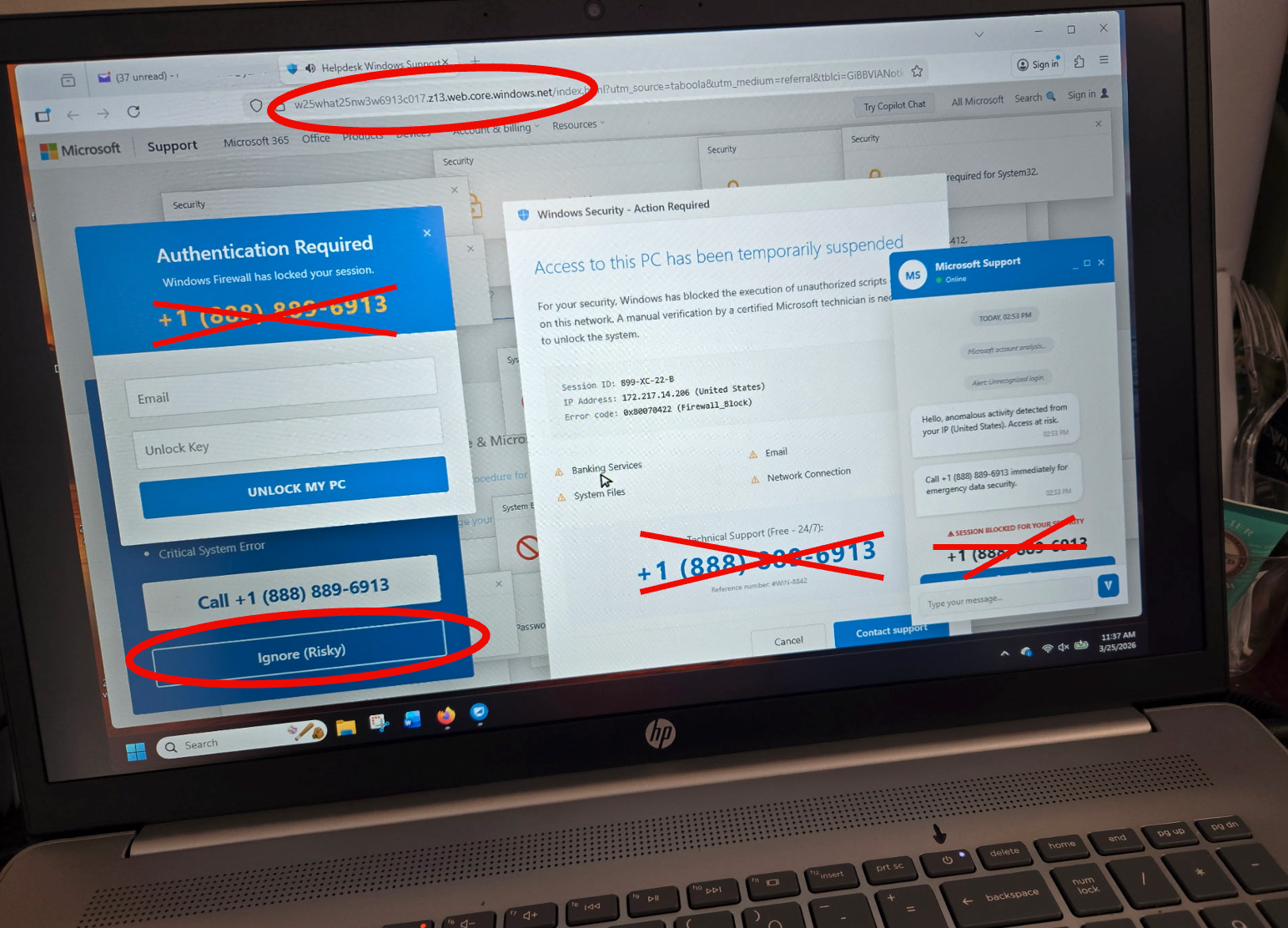
First, these pop-ups are coming from the website open in the browser, not from your computer itself. In most cases, this page appeared because a browser notification was clicked, which opened the site automatically.
Take a look at the website address:
w25what25new3w6913c017.web.core.windows.net
At first glance, it may look legitimate because it includes the word “windows.” But any real Microsoft website would include microsoft.com in the address not windows.net. Scammers are clever, but they can’t make their websites use official company domains. The address is often your biggest clue.
Second, notice the wording “Ignore (Risky).” That phrasing is intentional. It’s designed to increase your anxiety, making you feel like ignoring the message could make things worse, especially when you’re already overwhelmed by multiple urgent pop-ups telling you to call “technical support.”
I’ve crossed out the phone numbers in the image to emphasize one important rule: never call a phone number that appears on your computer screen.
Also, these screens are often accompanied by a loud, piercing beep, orchestrated to drive you crazy enough to call that number on the screen. Again, don't pick up that phone. Instead, you can safely turn off your computer by just pressing and hold the power button for about 10 seconds to shut it down.
Then, reach out to someone you trust: your local tech (like me!), a friend, or even the police if you’d like official guidance.
The Good News: It’s Easy to Fix
The good news: this is completely reversible, and you don't need anyone's help to do it.
On a Windows computer, the most reliable fix is to turn off all browser notifications at the operating system level. Go to Settings → System → Notifications, and look for your browser (usually Chrome or Edge) in the list of apps. Turn it off. Done. No more pop-ups from any website, ever.
On a Mac using Safari, go to Safari → Settings → Websites → Notifications. You'll see a list of every website you've ever given permission to. You can remove them one by one, or simply set the default to "Deny" so no new site can ever ask again. Chrome on a Mac works similarly: go to Chrome's Settings → Privacy and Security → Site Settings → Notifications, and set it to "Don't allow sites to send notifications."
While you're in there, it doesn't hurt to go through the list and remove anything that looks unfamiliar. You might be surprised how many sites have quietly collected permission over the years.
A Simple Rule to Remember
Treat "Allow Notifications" the way you'd treat someone asking for your home address. Would you give it to a website you just met? If you can't think of a specific reason why a site genuinely needs to reach you (and most sites don't) click "Block" or just close the prompt. Nothing bad will happen if you say no. Nothing good will happen if you say yes.
The internet is full of buttons designed to benefit someone other than you. This one just happens to be unusually good at impersonating a crisis.
Next up...
In my next column, I'll cover the app permission that shares your friends' private information, without even asking them.