
Table of Contents
Few messages create urgency quite like “Your storage is almost full.” Sometimes it’s a real warning. Sometimes it’s a scam email or text trying to get you to click a link, pay for more storage or install an app that promises to “clean” your device.
Before you do any of those things, take a breath and check for yourself. The first question is: What is running out of space?
Storage on your cell phone or tablet
Your cell phone or tablet has storage built into it. That’s where apps, downloaded files, photos and other data live. You may also use cloud storage, such as iCloud, Google or OneDrive, to store and sync some of those things online. These are separate limits. Buying more iCloud storage, for example, won’t increase the storage built into your iPhone.
On an iPhone or iPad, open Settings > General > iPhone Storage (or iPad Storage) to see how much room is left on the device. The same screen shows which apps use the most space. To check iCloud, return to Settings, tap your name at the top, then tap iCloud. There you can see how much of your iCloud storage you’ve used and what’s using it.
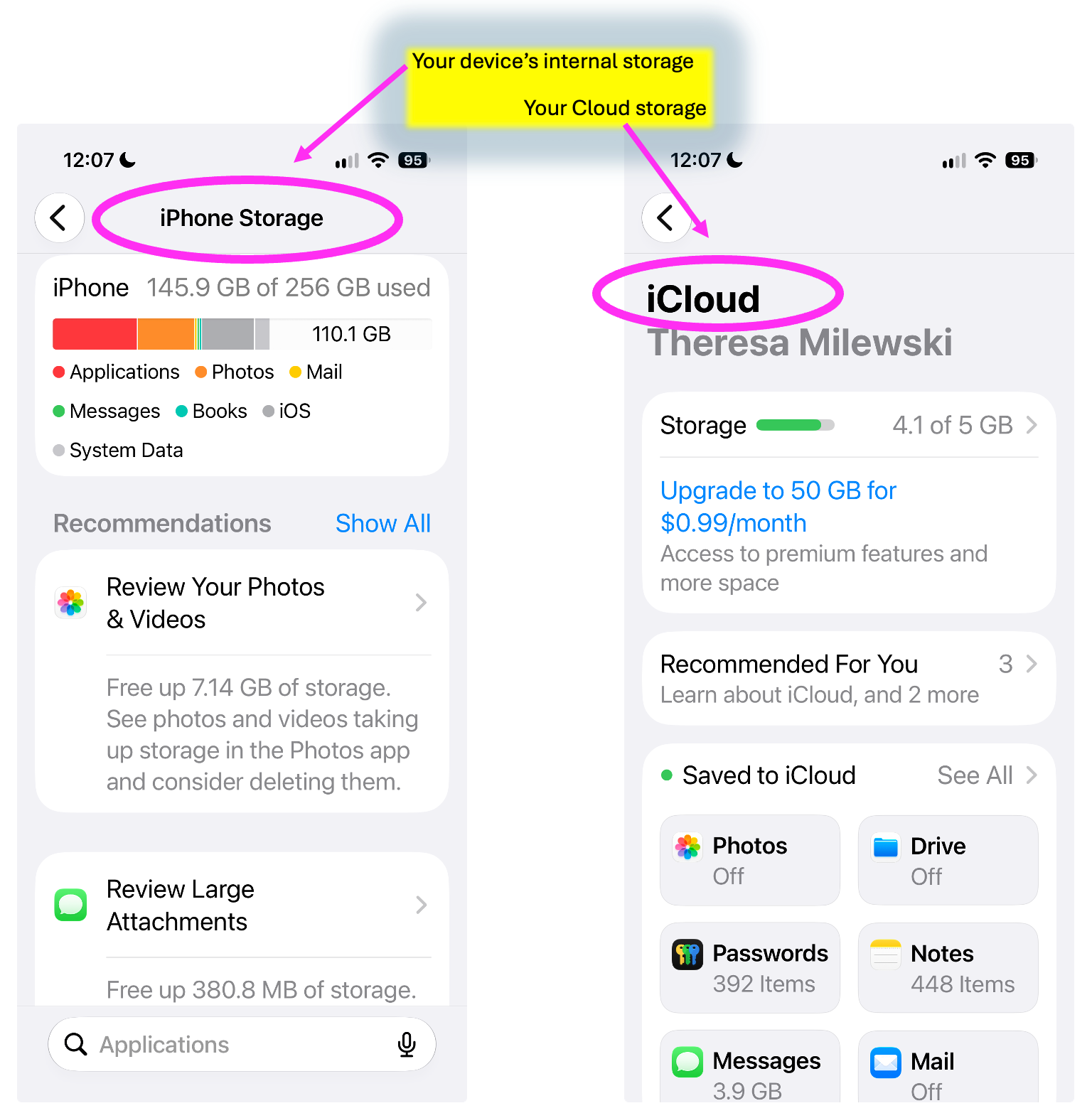
As you can see, I have a lot of photos taking up space (7.14 GB) on my phone. However, they are not taking up space in my Cloud. This means I can only see the photos on my phone (they are not being synced to any other device). I do this on purpose as I do not want to pay Apple any additional money for more iCloud storage. However, I do store my Messages in my Cloud so that I can see (and respond to them) via my other Apple device (my laptop). As you can see, my messages are taking up 3.9 GB of my iCloud space. That is a lot of space, mostly made up of photos and videos that I have texted to others or vice versa. I periodically delete photos and videos that are in my messages so that I don't go over my 5 GB capacity in the iCloud.
If you have an Android phone, open Settings and look for Storage. On many Samsung Galaxy phones, it’s under Device care > Storage; on Google Pixel phones, it’s directly under Storage. If you can’t find it, search for “storage” within Settings. To check your Google cloud storage, visit one.google.com/storage while signed in to your Google account. That total includes Google Photos, Gmail and Google Drive, among other items. If you use another cloud service, check its storage separately.
Storage on your computer
These days, your computer also has storage built into it and likely has cloud storage as well backing up your files.
On a Mac computer, click the Apple menu > System Settings > General > Storage to check the computer’s available space. To check iCloud, return to System Settings, click your name, then click iCloud.
On a Windows computer, open Settings > System > Storage to see what’s taking up space on the computer. If you use OneDrive, sign in to OneDrive and select Manage storage in its settings to check your cloud allowance. A computer can have plenty of room while OneDrive is full, or the other way around.
The clean-up
Once you know where the problem is, start with the easy things. Look through your apps and uninstall ones you no longer use. When looking at your device's list of apps, typically it shows each app’s size. It may also offer the option to offload an app, which removes the app but keeps its documents and data in case you want to reinstall it later.
Next, look at larger items. Photos and videos are obvious candidates, but don’t forget about movies you downloaded for a trip or videos people sent you in text conversations. A few large files can make more difference than hundreds of tiny ones. The iPhone and iPad storage screens may suggest attachments or downloads to review. On a Mac, the Storage screen shows how much space Messages uses. Texted photos and videos can take up iCloud space as well if you use Messages in iCloud.
Windows has built-in tools to review temporary files and manage storage under Settings > System > Storage. Read what’s selected before you delete anything, especially if the list includes your Downloads folder or Recycle Bin.
Take care with photos and files that matter to you. If they sync through iCloud, Google Photos or OneDrive, deleting them may remove them from the cloud and your other devices too. Check that you have a copy you want to keep before a big cleanup.
YOU can do it!
You generally don’t need a “cleaner” app to do this work. Your device already tells you how much space you have and helps you find what’s using it. If a warning arrives by email or text, skip its link. Open your device’s settings or cloud account yourself. If there’s a real problem, you can see it there and decide what, if anything, to delete or whether it is worth pay for more storage.
Marblehead resident Theresa Milewski runs All Computers Great and Small, providing friendly, local tech support and tutoring for Marblehead and surrounding residents. A teacher of technology for more than 30 years, she works with people of all levels, from complete beginners to advanced users, bringing patient, personalized tech help directly to people’s homes or small businesses.